
How it works
MyHelpGroup stands on four legs — you ask, the phone notices, the schedule asks, the night listens — and all four reach the same people: your group. This page says what each one does, and where each one stops. A watch on your wrist can carry three of them — the button, the sensors and the check-in — when the phone is out of reach.
① The button you press
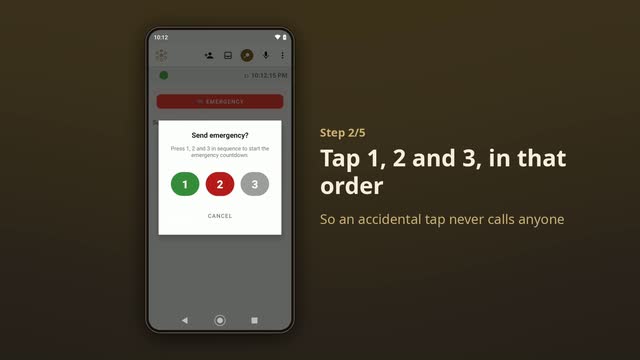 Play the video: Android tutorial: ask for help and cancel
It is on the main screen, and it is the whole of it: one button.
Press it and a countdown starts. Five seconds, with a cancel button, because a pocket and a grandchild both press buttons. Let it run out and everyone in your group is told.
What it sends is an Emergency — now. Each person walks the three steps: seen it, on my way, arrived. And from the moment the countdown opens, the phone records up to twenty seconds of your voice for them to hear.
② The phone notices by itself
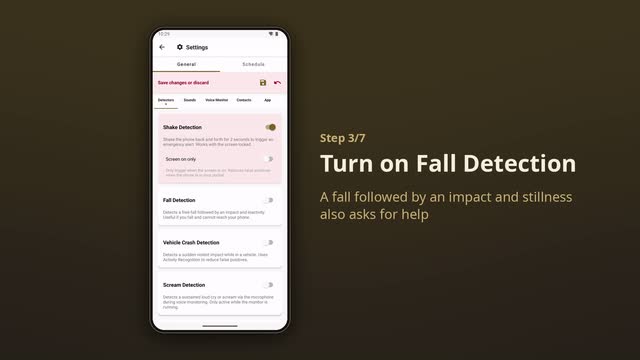 Play the video: Android tutorial: shake and fall detection
The button needs a hand. This part is for when you have not got one: a fall down the stairs, a car crash, a moment when you can shout but not reach the screen.
Seven sensors, and you choose which. Every one of them is off when you install the app — nothing watches you until you say so:
| What it watches for | What it is for |
|---|---|
| A fall | The drop, the impact, and then stillness — the three together, not just one |
| A hard impact in a vehicle | A car crash. The phone uses Android’s movement detection to tell a crash apart from a dropped phone |
| A shake | The gesture you can make with the phone in your pocket |
| A shout | A cry for help when you cannot reach the screen |
| A sudden change in air pressure | A door slamming in a car, a fall into water |
| A run that stops abruptly | Running, and then nothing |
| The phone turned face down | A deliberate gesture, for when a button is too slow |
No sensor sends anything on its own. Each one opens the same five seconds the button opens, with the same CANCEL underneath — because a phone dropped on a hard floor and a person falling can look the same to a sensor. The five seconds are there so the difference is yours to make.
And no sensor is a promise. A phone in a coat on the back seat may miss a crash; a phone knocked off a table may report one. That is why they are off until you turn them on, why each one is separate, and why none of them shortens the five seconds.
A watch on your wrist has sensors of its own: a fall, a missing pulse, a heart rate out of range.
③ The schedule asks
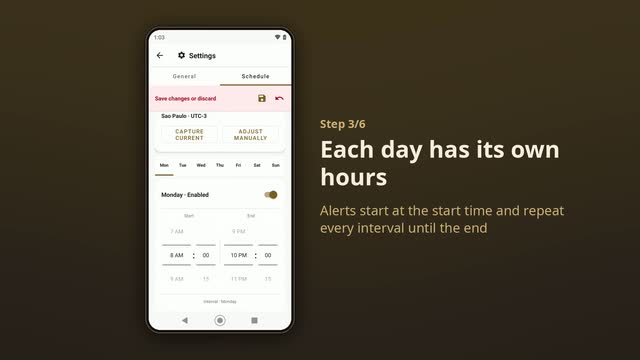 Play the video: Android tutorial: check-in schedule and pause
This is the part that works when you cannot ask for anything.
What you set
Per weekday: whether the schedule runs at all, the window it runs in — say 08:00 to 22:00 — and how often it asks inside that window.
The times belong to the schedule’s own time zone, not to wherever the phone happens to be. You set it once; a trip does not move your check-ins, and does not wake anyone at four in the morning.
The cycle
The exact numbers
| Window | Per weekday: a start time and an end time |
| Interval | 15 minutes to 8 hours, in steps of 15 minutes |
| Time to answer | 30 seconds |
| Tries | 1 to 5 — four by default |
| Between tries | 3 minutes |
| Pause | 15 minutes to 48 hours |
| Then | Five seconds to cancel, then an emergency to your group |
| If no device reports | 25 minutes after the check-in time, our server sends your group an alert |
Answering
The screen lights up over the lock screen and shows one button. Sound and vibration are yours to choose — none, a notification, or an alarm. One touch and it is quiet until the next time.
While an alert or an emergency of yours is already open, the schedule does not ask: your group has already been told, and a question on top of it would only get in the way.
Pausing
A hospital, a flight, a weekend away: you can pause the check-ins for 15 minutes to 48 hours without switching the schedule off. The app tells you when they come back, and which check-in is the first one after the pause. When the time is up they resume by themselves; there is nothing to remember.
What your group is told
When the last try goes unanswered, the screen turns red and counts down five seconds. Only CANCEL means you are all right; closing the screen, or not touching it at all, lets it run out.
Then your group receives an emergency — the same one the button sends — saying you did not respond to a safety check-in, with your position. Each person walks the three steps, and if there is no internet it goes as a text message.
If the phone goes quiet
The phone is what asks. A phone that is switched off, out of battery, out of signal or broken does not ask — and cannot send the emergency either. So our server keeps watch as well.
Whenever the schedule changes, and after every check-in, the app tells our server when the next check-in is due. If no device of yours — phone or watch — reports that check-in within 25 minutes of its time, your group receives an alert: you did not check in, and none of your devices answered. One alert for that check-in, not a stream of them. It is an alert and not an emergency, because the cause is usually a flat battery or a basement — but it means someone will call you, or come by. When a device of yours reports again, the alert closes by itself.
The server stays quiet when it should: while the check-ins are paused or switched off, and while an emergency of yours is already open — your group has been told.
What it cannot know is why the phone went quiet. This is a phone app, not a sensor in your house.
④ The night listens
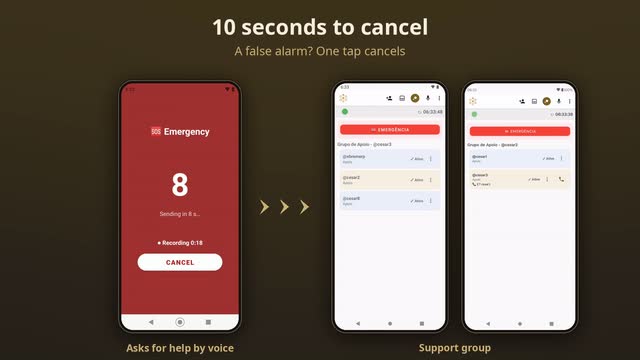 Play the video: Voice monitor: call for help without touching the phone
You switch the monitor on when you want it; it is a button, not a schedule.
It needs three things: permission to use the microphone, at least one word that you chose yourself, and the phone near you. Without a word of yours it does not start — there is nothing to listen for.
On the charger the screen stays on, dimmed to its lowest: visible proof that it is listening. Off the charger the screen goes dark and it keeps listening.
Two things call your group: one of your words, or a shout.
While it listens, nothing is recorded and nothing is kept. What leaves the phone, if one of your words is heard, is the same emergency the button sends — with its countdown, and with the twenty seconds of voice that start there, as any emergency does.
Where the sound goes. The phone turns what it hears into words by itself: with Android’s on-device recognition, or — where your phone or your language has no model for it — with an offline pack you download once. Neither of them sends the sound anywhere, so it never leaves the phone. The privacy policy says the same in the language of the law.
On your wrist
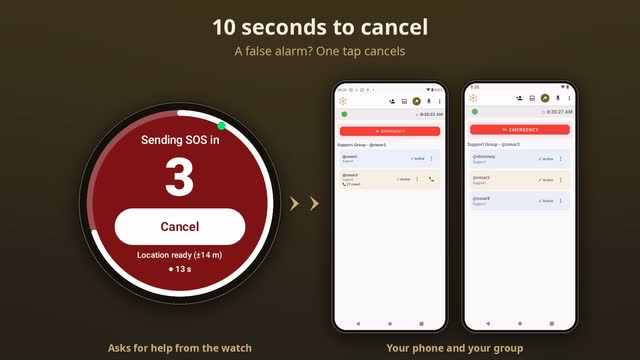 Play the video: SOS on your watch
A phone can be in another room when it happens. A watch is where your hand already is.
What it needs. A watch with Wear OS 3 or later. The app on the watch is the same MyHelpGroup, in the language your phone uses. It reaches our server on its own — over its mobile connection if it has one, over Wi-Fi, or through the phone by Bluetooth — so it still asks for help when the phone is not beside you.
Linking it. On the phone, open ⋮ › Watch and create a linking code: eight characters, used once, valid for five minutes. Type it on the watch. Up to three watches can be linked to one person, and unlinking is done from the phone.
Asking for help. Hold the SOS button for a little over a second, or touch the SOS tile. The same five seconds open, with the same CANCEL, and the watch starts recording twenty seconds of your voice — a white ring runs round the edge of the screen while it counts, and turns red while the recording is sent. After that the watch keeps trying until the message is through — and a coloured ring shows how far it got: waiting, received, seen, on the way, arrived. While the emergency is open the watch sends its position every 25 seconds, and a red disc blinks on the watch face.
The check-in on the watch. You can move the check-in from the phone to the watch. The question arrives as a notification that vibrates on your wrist — I’m OK or I need help. Unanswered, it ends the same way: a short countdown, then an emergency. Take the watch off for more than a minute and the check-in goes back to the phone by itself; if the watch cannot send, the phone does.
What the watch notices
The watch touches your skin, so it can notice what the phone cannot. Every detection is off until you turn it on, on the phone, in ⋮ › Watch › Watch sensors — and none of them runs while the watch is off your wrist or charging.
| What it watches for | What your group receives | Time to cancel |
|---|---|---|
| Fall | An emergency | 30 seconds |
| No pulse — on the wrist, and no valid heart reading for three minutes, checked again with a 30-second reading of its own before it counts | An emergency | 30 seconds |
| High heart rate at rest — above your limit for five minutes, when you are not exercising or walking | An alert | 60 seconds |
| Low heart rate — below your limit for five minutes, while you are not asleep | An alert | 60 seconds |
| Sudden running — from standing still, fast steps and a pulse jumping more than 30 beats a minute in half a minute | An alert | 60 seconds |
| Low watch battery — 20 % or less | A notice, once per discharge | — |
The limits. The high limit comes from your age: (220 − age) × 0.7, and never below 80; with no age, 120. The low limit is 45 unless you change it. Both are set on the phone.
Before anything goes. The watch vibrates, lights its screen and counts down. I’m OK stops it. On the alerts there is also I’m training, which stops it and switches on exercise mode.
Exercise mode. From the watch menu, from its tile, or with I’m training. It pauses the heart rate and running alerts — never the fall, the missing pulse, the SOS button or the check-in. It ends by itself after ten minutes without steady steps, or after three hours at most.
Battery. With Save battery as it drops on — it is, unless you turn it off — the watch reads the pulse less often below 40 %, keeps only the fall and the SOS button below 20 %, and only the button below 10 %.
What it sends. The same as the phone: that you need help, what started it, where you are, and — when you pressed SOS on it — your voice. Your heart readings and your steps stay on the watch: what leaves it is which detection fired, never the readings themselves.
On iPhone
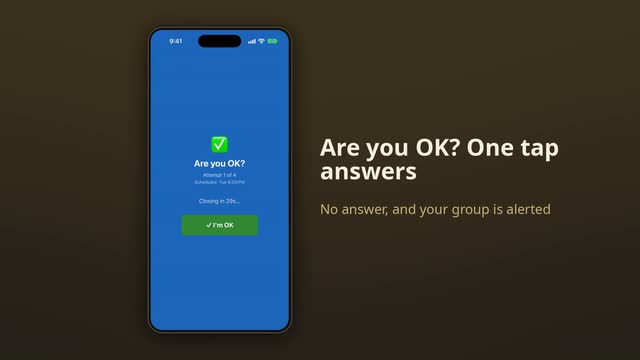 Play the video: iPhone: check-in and sensors
The iPhone app is on its way to the App Store. It talks to the same server and joins the same group: an iPhone and an Android phone can be in the same group and see the same board. Where iOS changes what this page says, this is how:
- The button, the five seconds, the twenty seconds of voice and the board — seen it · on my way · arrived — work the same.
- The phone’s sensors — a fall, a car crash, a shaken phone — keep watch even with the app in the background and the screen off, as long as location is set to Always. The countdown arrives as a notification, with vibration, and can be cancelled. Set off with the app off-screen, the alert goes without the twenty seconds of voice: iOS does not allow the microphone to start in the background.
- The night listens only with the app open on the screen, and only if the iPhone can recognise your language on the device itself. If it cannot, the monitor stays off and the app says so.
- The schedule asks with a notification, with I’m OK and I need help on the notification itself. If iOS has suspended the app and nobody answers, the word comes from our server, 25 minutes after the check-in time — an alert, not an emergency.
- Without internet, the iPhone does not send text messages by itself: the app opens the message already written, and you tap send. Replies by text do not come back to the board.
- Alerts arrive as notifications even with the screen locked or the app closed, but they do not break through silent mode.
- Your position goes with the emergency. To keep it updating while the app is in the background, allow location Always.
- It needs iOS 17 or newer.
Apple Watch. In testing — not yet in the App Store, and there is no date. It works together with the iPhone and starts with the SOS button: hold it, and after the countdown the watch shows the ring of the group and how many have responded. When the watch reaches our server by itself, it also records up to 20 seconds of voice. The watch sensors described above are, for now, Wear OS only.
Your group
Whoever creates the group is its master — the person the group exists for. Everyone invited is support.
Each person has a code in their own app. You invite by that code; they accept or decline, and see what they are accepting before they do. Nobody joins a group without saying yes, and nobody sees anything about you until something happens.
If you install the app on another phone of yours, the same invitations are there. They belong to you, not to one phone.
An administrator, if you want one
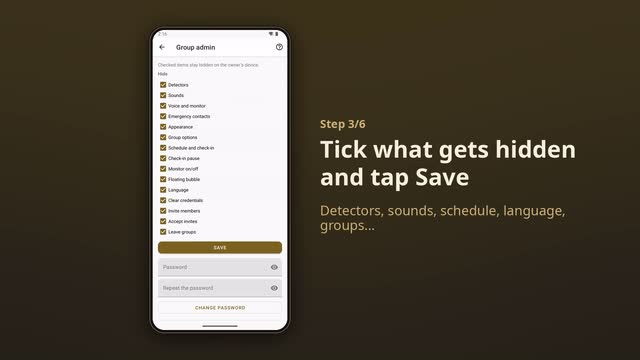 Play the video: Android tutorial: group administrator
A phone set up for someone else — a parent, a grandparent — is easy to undo by accident: one switch turned off and the check-in stops asking. The person the group is for can choose one member of their group as administrator and set a password. From then on, the settings the administrator hides stay out of sight on that phone — the sensors, the schedule, leaving the group, fifteen of them in all — and come back for ten minutes when the password is typed.
The password never leaves the phone as itself; the server keeps only a check of it. Five wrong tries lock it for a while. The administrator can change it from their own phone, and if it is forgotten, a six-digit code goes to the administrator’s email.
When your group is called
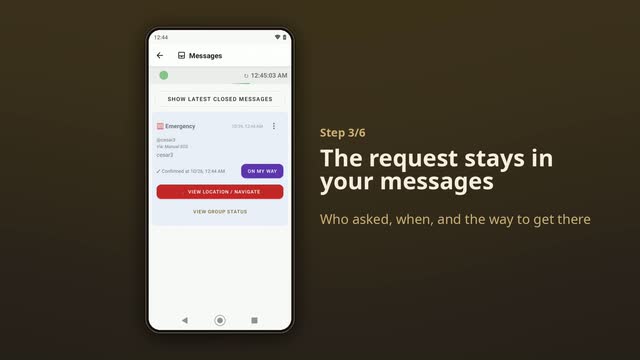 Play the video: Android tutorial: receive a request for help
Everyone is told at once, in seconds, with their screens off. The alert lights the screen and sounds as an alarm rather than as a notification — so a phone that has been silenced still makes a sound.
Your position travels with the alert, so the people coming can navigate to you instead of guessing. While an emergency of yours is open it keeps travelling: the phone takes a fresh GPS fix every few seconds and sends it as soon as you have moved about 50 metres — and every 25 seconds anyway — so they follow where you are, not where you were. Their screen says when it was last updated. It stops when the message is closed, or after 24 hours.
Share it with anyone. On an emergency, Share live location sends a link — through any messaging app, to anyone — that opens a map with the latest position, refreshed about every 25 seconds, and buttons to navigate there. No account or app needed: a neighbour, a relative outside the group, the ambulance. The person who asked for help may be unable to do it, so every member of the group has the same button on the map of that emergency. The e-mail with the voice recording carries the link too. Once the emergency is closed the page shows no position; after 24 hours the link expires anyway. Alerts do not have one, and neither does an emergency that went only by text message.
Anyone in the group can close the message when it is over, and closing it stops the alert on everyone’s phone at once. A closed message is not deleted — it stays in the list, and it can be reopened if it turns out not to be over.
Twenty seconds of your voice
A position says where you are. It does not say what happened. So when an emergency starts, the phone records it.
When. From the moment the five-second countdown opens, for up to twenty seconds. It does not matter what opened it — the button, a sensor, a check-in you did not answer, one of your words at night. Say what is happening; if you cannot speak, the sound around you goes instead.
What you control. CANCEL within the five seconds erases the recording, and nothing is sent. While it records, Stop and send ends it early and sends what is there, and Discard audio throws it away. The switch is Record voice on SOS, in the settings, and it is on unless you turn it off. It also needs the microphone: the app asks once, and if you say no, emergencies still go — without the voice.
The emergency never waits for it. It leaves at the end of the five seconds, as always; the recording follows by itself when it ends.
Who hears it. Your group, in the app: a ▶ Play message button appears on the emergency, usually within a minute. And everyone in the group with an e-mail address — you included — receives it by e-mail, as an ordinary audio file that plays on any phone or computer. The e-mail also carries the time, what started the emergency, your last known position and a fingerprint of the file, so anyone can show later that the recording was not changed. That e-mail is the copy that lasts.
Where it is kept, and for how long. Our server holds it only in memory, never on disk, until everyone has received it, the emergency is closed, or an hour has passed — whichever comes first. On the phones it stays in the app, and is deleted 30 days after the emergency is closed; anyone can delete it from their own phone sooner.
On the watch. Press SOS on the watch — the button or the tile — and it records the same way, with the same switch. A check-in or a sensor can start its countdown with the app out of view, and then Android does not let the watch open the microphone: that emergency goes without the voice. The watch deletes the recording as soon as it is sent; you get it by e-mail, like everyone else.
When there is no internet
Everything above travels over the internet. A lift shaft, a power cut at the mast, a plan that ran out — and the message does not leave.
When an emergency cannot go that way, the phone sends it as a text message to the people in your group whose number you linked. Text messages travel on the voice network, which reaches where data does not.
Their app reads it and does what it would have done anyway: the same screen, the same alarm, the same three steps. Seen it, on my way, arrived come back to you as text messages too, onto the same board you would have watched over the internet. Close the emergency and they are told the same way — and, as soon as there is internet again, through our server too, sealed so that the server carries the close without being able to read it. Nobody is left on their way to something that is already over.
The message says nothing to anyone else. What travels is one short signed and encrypted line — no name, no position, no link. Their phone writes the words, on their side, in their own language, out of a key your two phones share and the server never sees. What the mobile operator carries is unreadable.
The numbers stay on your phone. You link a member to a number out of your own address book. It is never sent to the server, and it is left out of Android’s backup and of a transfer to a new phone.
What it asks of you. Permission to send and to read text messages, asked only once you are in a group. The app reads only messages carrying its own mark; the rest of your inbox is none of its business.
Or call
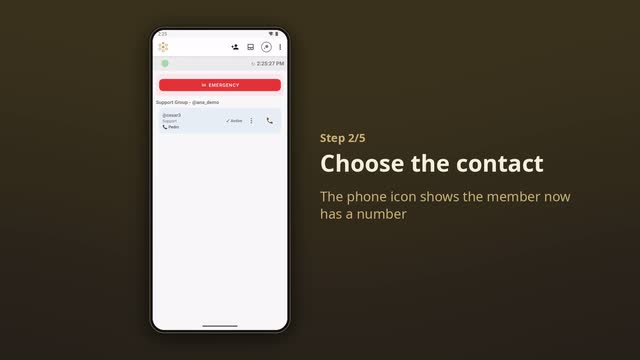 Play the video: Android tutorial: emergency phone numbers
A text is not the only way out. When an emergency cannot go over the internet, the screen that tells you so shows a Call now list — and whenever the phone has no internet, the main screen shows the same list in place of your group. First the people in your group whose number you linked, then the contacts you registered in the settings, then the emergency services of the country you are in.
On the emergency screen one touch calls: whoever is there already knows why. On the main screen the app asks you to confirm first, so a pocket cannot dial. Emergency services open the phone’s dialer with the number filled in; pressing call is yours.
Where it stops
- Only an emergency goes out this way. An alert does not.
- The voice recording does not travel by text message: it stays on your phone.
- It reaches the members whose number you linked, and only them. Anyone else in the group appears on your board as out of reach — you can see who was not told.
- Nobody outside your group is texted: not the emergency services, not anyone else.
- A text that fails is tried again — on the other SIM card, then when the signal comes back — and given up after 12 hours.
- With no signal at all, nothing leaves. A text message reaches further than data; it is not magic.
What the phone has to allow
Android switches apps off to save battery. That is right for most apps and wrong for this one, so the app asks for four things that look unusual. Each one has a single reason:
- No battery restrictions — a frozen app cannot ask at the time you set it to ask.
- Exact alarms — so the check-in happens at the minute you chose, not whenever the system next feels like waking things up.
- Full-screen notifications — so the check-in can light a locked screen instead of waiting quietly in the list of notifications.
- Appear over other apps — so the check-in reaches the front while you are using something else. Without it the alert still arrives, as a strip at the top of the screen.
The app works without any of them. It works worse, and late. Nothing here is used for anything other than what this page describes — what is collected and where it goes is written out in the privacy policy.